> For the complete documentation index, see [llms.txt](https://guide.tiledesk.com/llms.txt). Markdown versions of documentation pages are available by appending `.md` to page URLs; this page is available as [Markdown](https://guide.tiledesk.com/apps-and-integrations/whatsapp-business/how-to-send-whatsapp-messages-to-contacts.md).
# How to Send WhatsApp Messages to Contacts
The **Send WhatsApp Message** feature allows you to send templated WhatsApp messages directly to individual contacts from your contact list. This is ideal for sending personalized communications such as appointment confirmations, follow-ups, promotional offers, or important updates to specific contacts.
Before sending WhatsApp messages to contacts, ensure you have:
* A WhatsApp Business Account connected to Tiledesk (see [Related Articles](#related-articles) below)
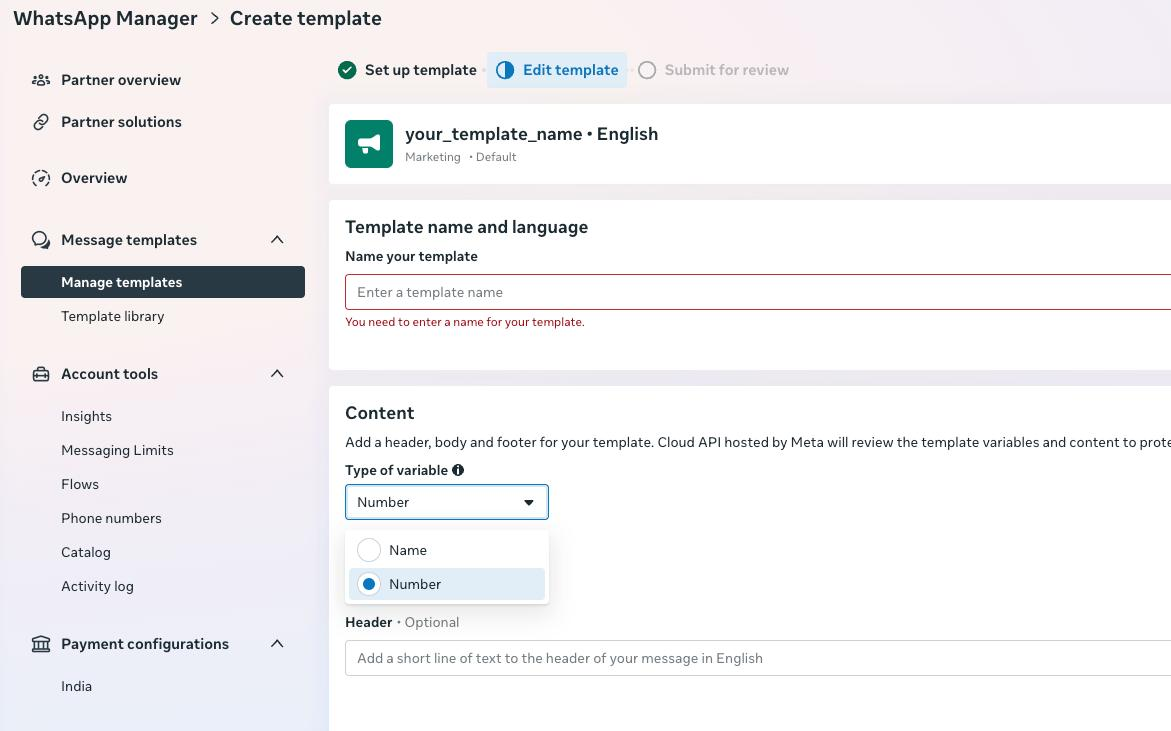
* Pre-approved WhatsApp message templates (this ensures compliance with WhatsApp policies and provides a structured and reliable messaging format for recipients). To guarantee maximum compatibility across different WhatsApp Business Platform implementations, we **recommend using templates that rely exclusively on numbered variables (e.g., {{1}}, {{2}}, {{3}})** within the message body.
* Contacts with valid phone numbers in your Tiledesk contact list (the phone number must be in **international format**: a **+**, the **country dial code (**the international prefix**)** , and the **full phone number (**example: `+1 555 123 4567`**).**
#### How to Send a WhatsApp Message to a Contact
#### Step 1: Access the Contacts List
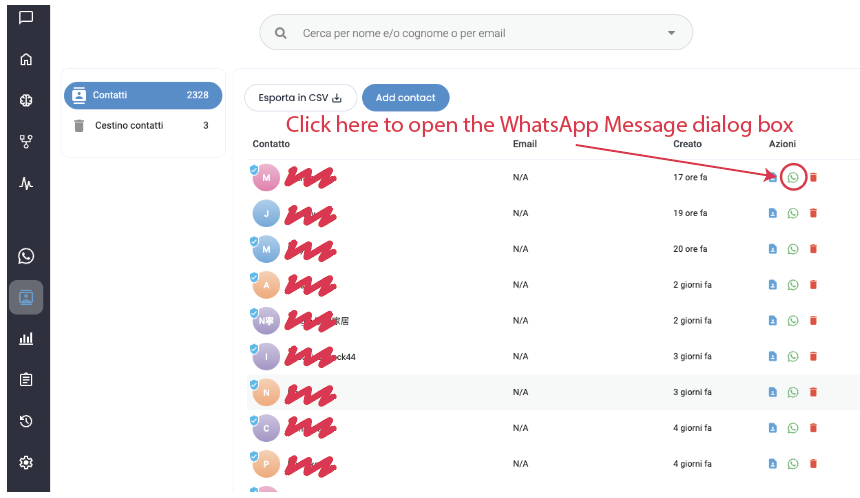
Navigate to the **Contacts** section from the left sidebar menu to view your contact list.
#### Step 2: Select a Contact
Locate the contact you want to message in the contacts list. Each contact row includes a **WhatsApp message button** for quick access. Click the **WhatsApp message button** next to the contact's name. This will open the **WhatsApp Message dialog box**
#### Step 3: the WhatsApp Message Dialog
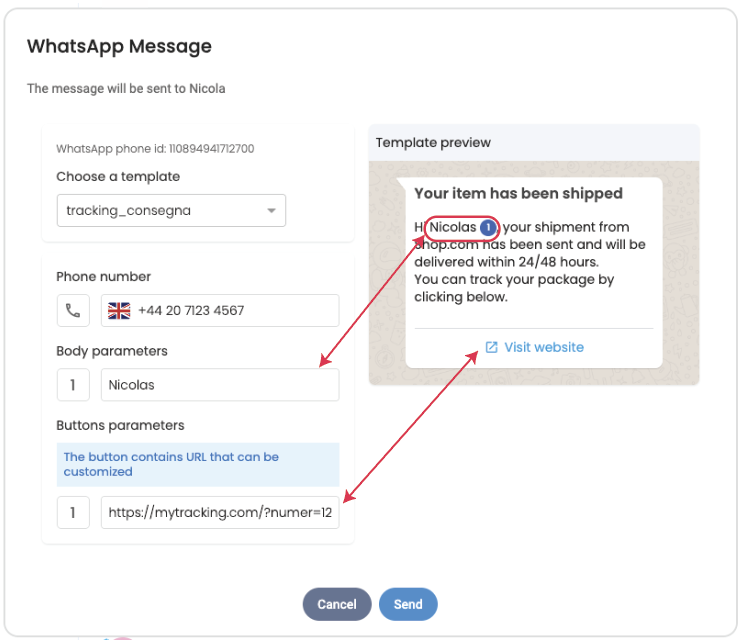
In the WhatsApp Message dialog **Select a template** from the dropdown menu
* Choose the template that matches your communication needs (e.g., `appointment_reminder`, `order_confirmation`, `promotional_offer`)
* After selecting a template (the template preview will display the message structure with placeholders), customize the template variables to personalize the message
Once you've completed customizing the template variables click **Send** to deliver the message via WhatsApp
#### Tracking Message Status
After sending the message, you can monitor its delivery status (Delivered, Read, Error ...) in the "Sent Messages"section on the contact details page
More detailed information is available by clicking on the arrow next to the sent message
#### Related Articles
* [How to configure a WhatsApp Business account](/apps-and-integrations/whatsapp-business/how-to-connect-tiledesk-with-whatsapp-business.md)
* [How to connect Tiledesk with WhatsApp Business](/apps-and-integrations/whatsapp-business/how-to-connect-tiledesk-with-whatsapp-business.md)
* [How to use WhatsApp templates with Tiledesk](/apps-and-integrations/whatsapp-business/how-to-use-whatsapp-templates-with-tiledesk.md)
---
# Agent Instructions
This documentation is published with GitBook. GitBook is the documentation platform designed so that both humans and AI agents can read, navigate, and reason over technical content effectively. Learn more at gitbook.com.
## Querying This Documentation
If you need additional information that is not directly available in this page, you can query the documentation by asking a question.
Perform an HTTP GET request on the following URL with the `ask` and `goal` query parameters:
```
GET https://guide.tiledesk.com/apps-and-integrations/whatsapp-business/how-to-send-whatsapp-messages-to-contacts.md?ask=&goal=
```
`ask` is the immediate question: it should be specific, self-contained, and written in natural language.
`goal` is what the user is ultimately trying to achieve, the reason they need the answer. Sharing it helps GitBook give you a better, more relevant answer. A goal is most helpful when it describes the outcome the user wants rather than restating the question. For example, with `ask=how do I create an API token`, a goal like `automate deployments from our CI pipeline` lets GitBook tailor the answer to that use case.
The response will contain a direct answer to the question and relevant excerpts and sources from the documentation.
Use this mechanism when the answer is not explicitly present in the current page, you need clarification or additional context, or you want to retrieve related documentation sections.