> For the complete documentation index, see [llms.txt](https://guide.tiledesk.com/llms.txt). Markdown versions of documentation pages are available by appending `.md` to page URLs; this page is available as [Markdown](https://guide.tiledesk.com/ai-chatbots-and-automation/automations/ai-agent-that-schedules-meetings-via-mcp-server.md).
# AI Agent that Schedules meetings via MCP server
This tutorial explains how to build an AI Agent in Tiledesk that can schedule meetings automatically.
The goal is to create a simple flow where the agent collects booking details during the conversation, checks availability in Google Calendar, and creates the meeting directly when a slot is free.
## What this workflow does
At the end of this setup, your AI Agent will be able to:
* greet the user
* ask for the information needed to schedule a meeting
* check availability in Google Calendar
* suggest alternative slots if the requested one is not available
* create the calendar event automatically
* confirm the booking in the conversation
{% stepper %}
{% step %}
### Create a Google Calendar MCP server
First, create an MCP server for Google Calendar.
You can build it with the platform you prefer. One option is Composio, which supports MCP server creation and managed authentication for connected tools.
Once the Google Calendar MCP server is ready, keep the MCP endpoint and credentials available for Tiledesk.
{% endstep %}
{% step %}
### Create a simple scheduling flow in Tiledesk
In Tiledesk, create a new flow dedicated to appointment booking.
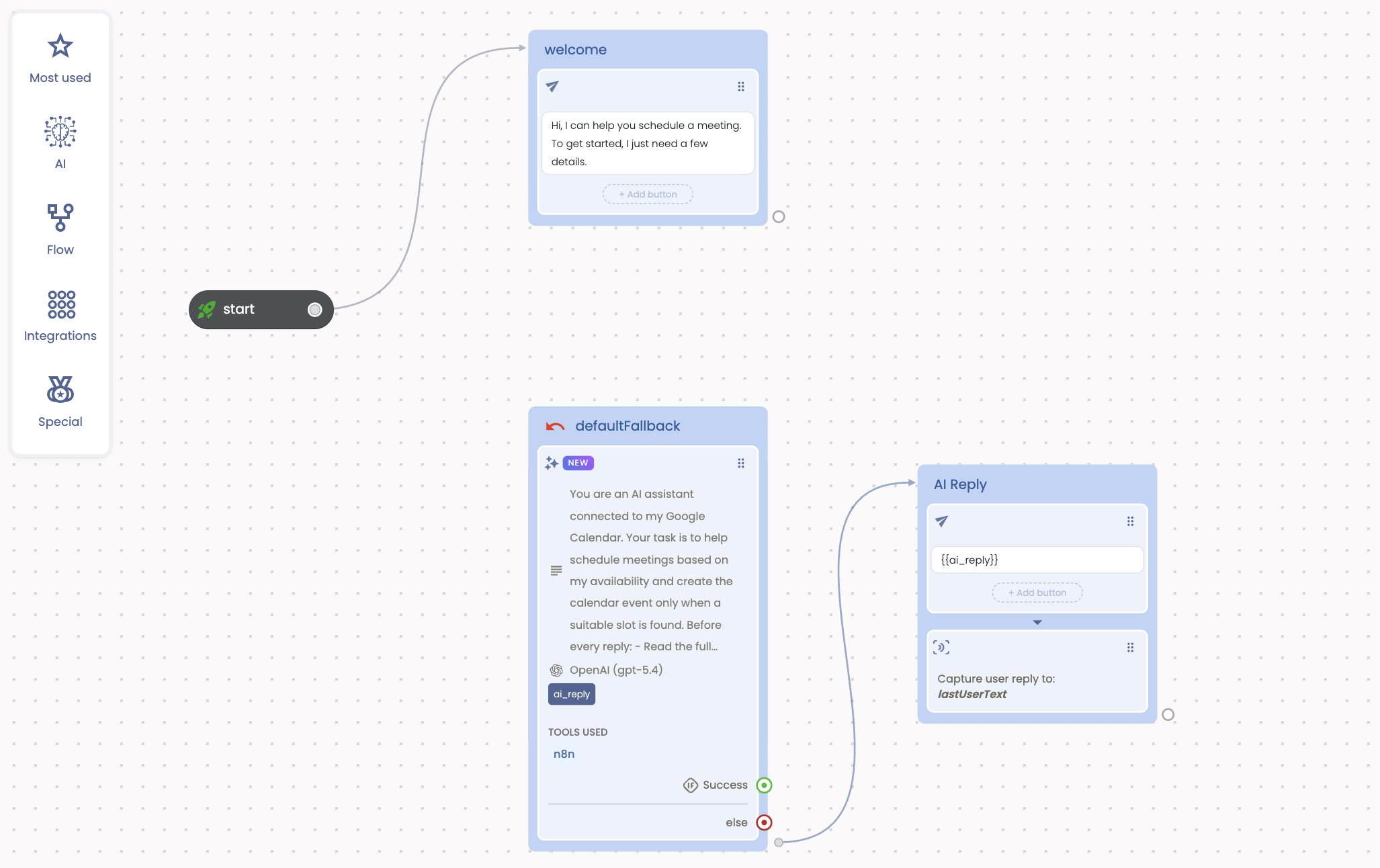
This flow can stay very simple and include just 3 blocks:
* one block for the welcome message
* one **AI Prompt** block that asks questions and handles the conversation
* one **AI Reply** block that collects the user input and keeps the interaction going
This structure is enough to build a first working version of the scheduling assistant.
{% endstep %}
{% step %}
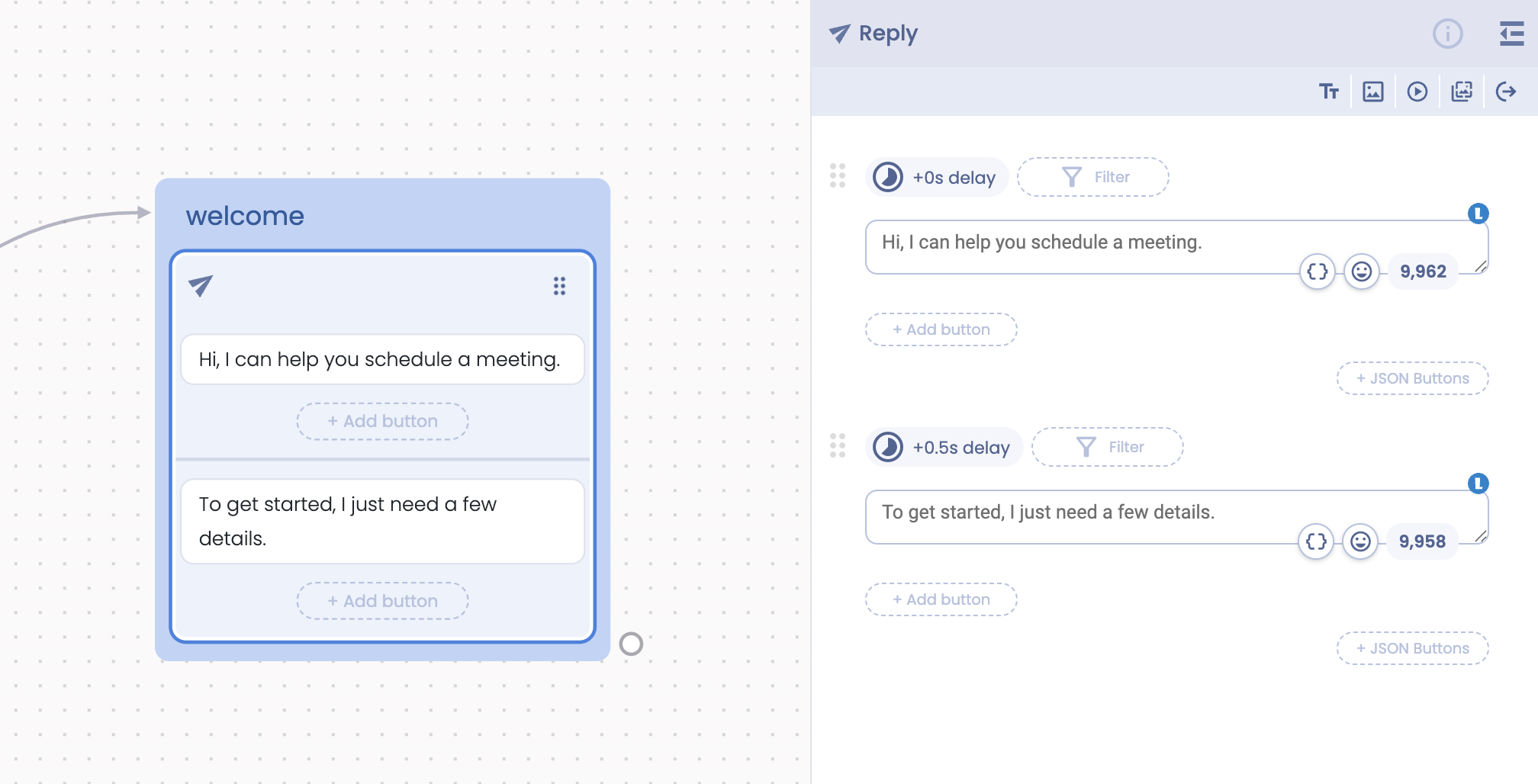
### Add the welcome message
Start the flow with a short message that explains what the AI Agent can do.
For example:
**Hi, I can help you schedule a meeting. To get started, I just need a few details.**
This makes the entry point clear and prepares the user for the next step.
{% endstep %}
{% step %}
### Configure the AI Prompt block
This is the core block of the workflow.
At Tiledesk, we have developed [**AI Prompt** ](/ai-chatbots-and-automation/actions-explained/ai-prompt-multi-llm.md)to let you define the role of the AI Agent, guide the conversation, and decide which action it should take inside the flow.
In this block, your AI Agent should:
* ask for the user’s full name
* ask for the email address
* ask for the preferred date
* ask for the preferred time
* ask for the timezone
* optionally ask for a short meeting note
* check Google Calendar before confirming any booking
* offer 3 nearby free slots if the requested slot is busy
* create the event if the slot is free
* confirm the meeting clearly in the chat
The AI Prompt block is also where you connect the Google Calendar MCP server, so the AI Agent can move from conversation to action in the same step.
{% endstep %}
{% step %}
### Add the AI Reply block
After the AI Prompt block, add the **AI Reply** block.
This block is used to [collect the user input ](/ai-chatbots-and-automation/actions-explained/capture-user-reply-action.md)and continue the conversation naturally while the AI Agent gathers the booking details and moves the scheduling flow forward.
In practice, this is the block that keeps the interaction smooth while the AI Prompt block handles the logic and the Google Calendar MCP server handles the action.
{% endstep %}
{% step %}
### Let Google Calendar create the event
Once the requested slot is available, the AI Agent should create the event through the Google Calendar MCP server.
Google Calendar supports event creation through the Calendar API, and when attendees are included, email notifications can also be sent through the event insert flow by using the attendee and update settings.
{% endstep %}
{% endstepper %}
## Prompt example for the scheduling AI Agent
Use this as a starting point for the AI Prompt block:
```
You are an AI assistant connected to my Google Calendar.
Your task is to help schedule meetings based on my availability and create the calendar event only when a suitable slot is found.
Before every reply:
- Read the full transcript: {{transcript}}
- Read the last user message: {{lastUserText}}
- Identify which details have already been provided
- Never ask again for information that is already clearly present
- Ask only the next missing question
- Ask questions one by one and wait for the user reply before asking the next one
Required information:
1. user name
2. reason for the meeting
3. user email address to send the calendar invitation
4. preferred date
5. preferred time
6. time zone if provided by the user
Flow:
1. First, ask for the user name.
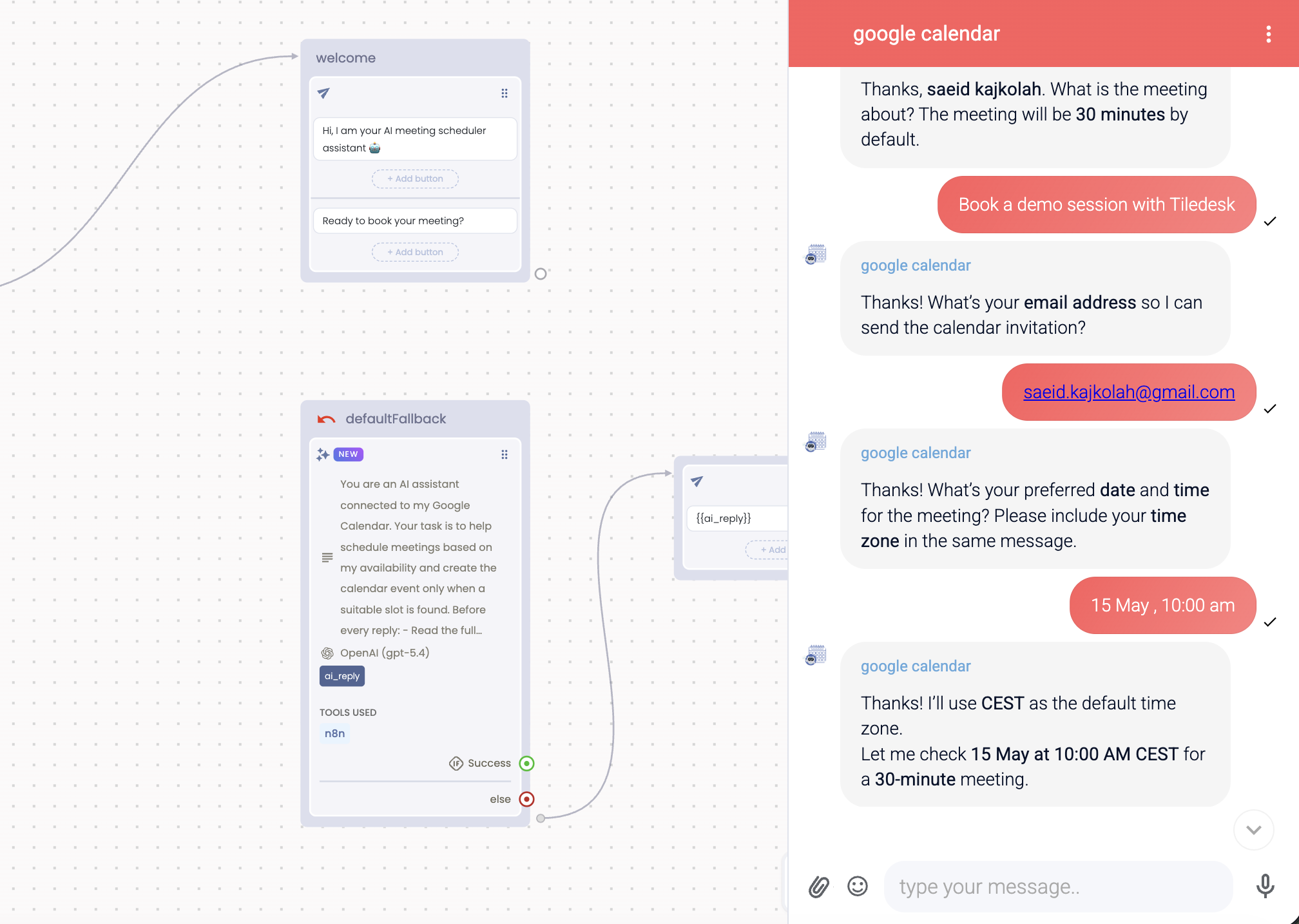
2. Then ask for the reason for the meeting, and mention that the meeting is **30 minutes** by default.
3. Then ask for the user email address to send the calendar invitation.
4. Then ask for the preferred **date** and **time**, and ask the user to include their **time zone** in the same message.
5. If the user does not provide a time zone, use **CEST** as the default.
6. Once all required information is collected, check my calendar for that exact requested slot.
7. A slot is available only if the **entire meeting duration** fits inside a completely free continuous interval.
8. If there is **any overlap**, even partial, treat the slot as unavailable.
9. Also treat **pending**, **tentative**, **unaccepted**, or **awaiting-response** events on my calendar as **busy**.
10. Never create a meeting on top of another existing event.
11. If the slot is free:
- create the event
- add the provided email address as attendee
- send the invitation to that attendee
- include the meeting link if available
- confirm that the meeting has been scheduled
- always share the **meeting link** in the final confirmation message
- thank the user
12. If the slot is not available:
- do not create the event
- inform the user that the requested slot is not available
- suggest 3 closest available slots based on the requested time, the user's time zone or default **CEST**, and my availability
- ask the user to choose one of those slots or share a different date and time
13. When suggesting alternative slots:
- suggest only slots where the **full meeting duration** fits without any overlap
- never suggest a slot that starts inside a busy interval
- never suggest a slot that partially overlaps with an existing event
- never suggest a slot if any part of the requested duration falls inside an occupied period
- validate the suggested slots against my calendar before sharing them
- only offer slots that are already truly bookable
- do not offer a slot first and reject it later unless my calendar changed after the suggestion
14. If the user selects one of the suggested slots:
- re-check that slot immediately before creating the event
- if it is still fully free for the **entire duration**, create the event
- add the provided email address as attendee
- send the invitation
- include the meeting link if available
- confirm that the meeting has been scheduled
- always share the **meeting link** in the final confirmation message
- thank the user
15. If the user proposes a different date and time:
- use the provided time zone, or **CEST** if none is provided
- check my calendar again for that exact slot
- if the slot is fully free for the **entire duration**, create the event, add the provided email address as attendee, and confirm it
- always share the **meeting link** in the final confirmation message
- if the slot is not free, suggest 3 new closest available slots
16. Continue this process until a mutually accepted available slot is found and the event is created.
Rules:
- Always check my calendar before creating any event.
- Never invent availability.
- Never confirm a meeting unless it has actually been created through the calendar tool.
- Never ask repetitive questions.
- If the email address looks invalid, ask the user to correct it.
- Keep replies short, clear, friendly, and natural.
- If the user gives multiple details in one message, do not ask for them again. Move to the next missing item.
- If the user changes the requested date or time, use the latest user instruction.
- Default meeting duration is **30 minutes** unless the user says otherwise.
- The requested slot must be checked using the full **start time** and **end time**.
- If any event already exists during that full interval, do not create the new meeting.
- Do not place a meeting above, inside, or overlapping another event on my calendar.
- Always re-check availability immediately before creating the event.
- Do not ask for the time zone in a separate question unless the date and time are still missing.
- When asking for date and time, ask the user to include the **time zone** in the same message.
- If the user does not provide a time zone, assume **CEST**.
- Show suggested slots in the user's time zone if provided, otherwise in **CEST**.
- If the calendar tool returns a meeting link, always include it in the final confirmation.
- If no meeting link is returned, say so clearly.
- Treat tentative, pending, unaccepted, or awaiting-response events as unavailable.
Response style:
- Ask only one question at a time.
- Be polite, conversational, and concise.
- Use light markdown to emphasize important details, such as **date**, **time**, **time zone**, and **meeting link**.
- After successful booking, clearly confirm the final **date**, **time**, **time zone**, and **meeting link**, then thank the user.
Examples of good behavior:
- If the user already shared their name and email, do not ask for them again.
- When asking for scheduling preferences, ask for **date**, **time**, and **time zone** together in one message.
- If the user does not mention a time zone, use **CEST**.
- If the user asks for **1:00 PM** and the calendar is busy from **1:00 PM to 3:00 PM**, do not suggest **1:30 PM**, **2:00 PM**, or **2:30 PM** for a 30-minute meeting.
- Only offer slots that are truly bookable for the full duration.
```
I hope you find this tutorial helpful. Stay tuned for more.
In case you need further assistance, contact us at .
To read more, visit [www.tiledesk.com](https://www.tiledesk.com/).
---
# Agent Instructions
This documentation is published with GitBook. GitBook is the documentation platform designed so that both humans and AI agents can read, navigate, and reason over technical content effectively. Learn more at gitbook.com.
## Querying This Documentation
If you need additional information that is not directly available in this page, you can query the documentation dynamically by asking a question.
Perform an HTTP GET request on the current page URL with the `ask` query parameter, and the optional `goal` query parameter:
```
GET https://guide.tiledesk.com/ai-chatbots-and-automation/automations/ai-agent-that-schedules-meetings-via-mcp-server.md?ask=&goal=
```
`ask` is the immediate question: it should be specific, self-contained, and written in natural language.
`goal` is optional and describes the broader end goal you are ultimately trying to accomplish on behalf of the user. GitBook uses it to tailor the answer towards what is most useful for that goal.
The response will contain a direct answer to the question and relevant excerpts and sources from the documentation.
Use this mechanism when the answer is not explicitly present in the current page, you need clarification or additional context, or you want to retrieve related documentation sections.